Last modified on
February 5, 2026
by
Jennifer Parker
Overview
This post guides UConn faculty in designing, building, and teaching online and hybrid courses. Please see UConn Registrar’s Course Modalities for a complete explanation of each instructional approach.
The phases outlined are intended for faculty with a strong background in teaching and pedagogy who are already comfortable using HuskyCT. To learn more about the skills and knowledge needed, see UConn Competencies for Online and Hybrid Instruction.
We encourage faculty who prefer a more guided support model to review the phases outlined in this site and then contact eCampus to work with one of our staff members.
 This icon indicates information related to accessibility and universal design of learning.
 This icon indicates information related to Artificial Intelligence use in course design.
Phase 1: Design
![Digital illustration of an open notebook with checklist and lightbulb representing online course design [AI-generated image]](https://draft-ecampus.media.uconn.edu/wp-content/uploads/sites/4101/2025/11/image-2.png)
- “Is there a systematic and efficient way to plan my new course?”
- “How can I make a meaningful connection with my students?”
- “What do I want my students to learn?”
- “Which activities will help me create a robust and interactive online learning environment?”
eCampus follows Quality Matters (QM) standards and guidelines in designing online and hybrid courses. Before planning your instructional materials, activities, and assessments, familiarize yourself with the QM Rubric.pdf.
View the QM Rubric with Annotations for more details and instruction on meeting each standard:
- Contact eCampus for a Quality Matters Workbook, or
- Access the QM Rubric with Annotations online:
- Create a Quality Matters Account. Enter email then click “No, I am new here.”
- Log into QM
- Choose CRMS on top Menu
- Choose (For Reference Only) View Sample Reviewer Worksheet
- Select “The Quality Matters Higher Education Rubric, Seventh Edition”
- View all standards by clicking through the interface
At the end of the course design and development process (Step 3.3) you will perform a Quality Matters Self-Review of your new course.
The following steps of the Design Phase will help you systematically create your course to meet quality course design standards and promote student learning.
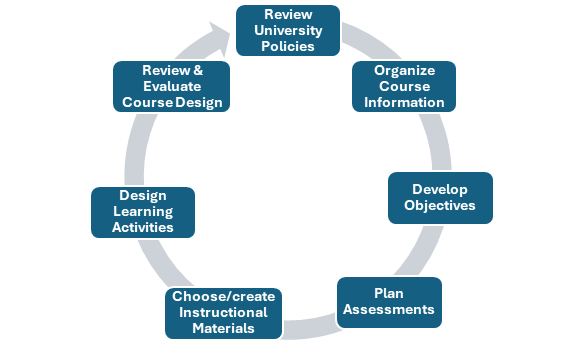
Before starting the design of your course, review University policies related to online teaching and course design:
- Authentication of Students in Online Courses – recognize the NECHE accreditation standard and federal requirement for verifying an online student’s identity as it relates to their work in online courses.
- Meeting Regular and Substantive Interaction (RSI) Requirements – recognize federal requirements for online courses and how it impacts the instructor and student roles.
- Copyright in Online Courses: Using Free Content Legally – understand how the “online” variable impacts using copyrighted works. There are distinct differences on how copyrighted works can be used online verses in-person instruction.
- Family Educational Rights and Privacy Act of 1974 (FERPA) – recognize students’ rights concerning their education records.
Accessibility – Title II of the Americans with Disabilities Act requires all public universities, including UConn, to ensure digital content is accessible. This includes webpages, PDFs, social media posts, apps, and more. The following resources can help guide you in making your instructional materials accessible.
- UConn IT Accessibility – provides information about how to create accessible digital content, accessibility in software and hardware, where to report accessibility issues, and much more.
- eCampus Accessibility Checklist and Guide – helps faculty develop an accessible online course.
- Office of Institutional Equity IT accessibility website – serves as a central resource for information related to accessibility at UConn.
- Center for Students with Disabilities – provides students and faculty support to create an accessible and inclusive learning environment.
During Phase 1, you will complete a Course Design Plan (CDP), which captures the alignment of key course components (objectives, assessments, learning activities and instructional materials) to ensure they work together to help students achieve the course-level objectives. This completed document will play a major role in guiding you as you build your course in Phase 2 and helping you finalize your syllabus in Phase 3.
- Read Design: Using a Course Design Plan and then complete the next three bullets.
- Download the Course Design Plan template.
- Watch Completing a Course Design video.
- Review the Example Course Design Plan.
- Complete “Step 1: Identify course information and situational factors. (Course Analysis)” in your Course Design Plan.
- Download the eCampus Syllabus Template and begin documenting information, as you make decisions.

Articulate what you want your students to know or do. Define course and module objectives to guide assessments, instructional materials, and learning activities. By designing your course around what you want students to know or do, you will more efficiently and effectively create a quality course where students meet expectations.
- Read Writing Learning Objectives.
- View sample course learning objectives from different fields of study.
- Write course and module-level learning objectives in your Course Design Plan.
Use AI to craft objectives that meet the standards of specific, observable, and student-centered. See Copilot Prompt Templates for Course Design for AI prompts to help with writing learning objectives.
Determine the assessments to measure students’ achievement of the course-level objectives. Keep in mind the unique nature of online learning and recognize that in-person assessment methods do not always translate well to the online environment.
- Plan your assessments:
- Write your assessment strategies in your Course Design Plan.
- Document what tools you will need to facilitate your online assessments in your Course Design Plan.
- Testing & Assessment
- Content Types in Ultra Course View (This contains information about assessments, LTI connection, and engagement options in HuskyCT.)
- Other considerations: publisher tool integrations, collaboration tools, video creation tools, exam proctoring and accessibility.
- Consult with Educational Technologies about your tool options and questions.
As you plan your assessments, consider principles of Inclusive Online Course Design & Facilitation.
Ask AI to brainstorm aligning assessments for your learning objectives. See Copilot Prompt Templates for Course Design for guidance.
Choose or create instructional materials that will help students achieve the learning objectives and document them in your course design plan.
- Deciding on Instructional Materials
- Open Educational Resources
- Types of Videos for Online Teaching & Learning
- Creating & Managing Videos for Online Teaching & Learning
- UConn Library Materials and Resources
- Copyright in Online Courses: Using Free Content Legally
As you select and create instructional materials, consider principles of Inclusive Online Course Design & Facilitation.
Determine interactions that will help students meet the learning objectives and document the learning activities in your course design plan. When deciding on learning activities, consider opportunities for student-to-student, student-to-instructor, and student-to-content interactions.
| Types of Interactions | Activity Focus |
|---|---|
| Discussions | Facilitate open dialogue on course topics, encourage critical thinking, and foster collaborative learning. |
| Role-plays | Allow students to simulate real-world scenarios and explore perspectives through enacted situations. |
| Field Trips (virtual or in-person) | Provide experiential learning opportunities through visits to relevant sites or virtual environments. |
| Simulations | Use interactive models or virtual simulations to practice skills and apply concepts. |
| Scenario-based Activities | Engage students with realistic case studies or problem-solving tasks to enhance analytical skills. |
| Scavenger Hunt | Encourage exploration and discovery through tasks requiring students to locate and collect specific information or items. |
| Lab Exercises | Provide hands-on experiences to apply theoretical knowledge in a controlled settings. |
| Journal Entries | Promote reflective learning and personal engagement with course content. |
| Lecture or Video with Handouts with Gaps | Encourage active listening and note-taking by providing handouts requiring students to fill in missing information. |
| Self-Quizzes or Knowledge Checks | Enable students to assess their understanding independently with automated feedback. |
| Student-created Outlines, Concept Maps, or Graphic Organizers | Foster organizational and conceptual thinking by having students create visual summaries of their learning. |
| Short Writing Assignments | Encourage analytical and creative expression through brief written tasks focused on specific topics. |
For more learning activity ideas, see:
- Active Learning Activities Directory
- Collaborative (Group) Learning Online
- Developing Engaging Online Discussions
- Flipped Classroom Methods
As you plan learning activities, consider ways to incorporate Universal Design for Learning (UDL).
Ask AI to brainstorm learning activities. See Copilot Prompt Templates for Course Design for guidance. You may also consider using AI as part of learning activities, such as BlackBoard’s AI Conversation tool.
Tips for Hybrid and Online Blended Courses
- Keep activities during synchronous class time that work best with real-time student engagement, such as case studies, debates, internships, field trips, group work, and hands-on demonstrations.
- Create activities for the asynchronous online environment that are best suited for that type of delivery, such as self-checks, quizzes, individual writing assignments, or asynchronous discussions.
Tools and Technologies
In addition, document any tools you will need to facilitate the learning activities.
- Content Types in Ultra Course View. Consult with Educational Technologies about your tool options and questions.
- Other considerations
- publisher tool integrations
- collaboration tools
- video creation tools
- accessibility
Perform a Quality Matters Self-Review of the following standards:
- Learning Objectives (Standards 2.1-2.5)
- Assessment and Measurement (Standards 3.1-3.6)
- While standard 3.4 mentions the option of creating student choice for assessments, it doesn’t explicitly mention UDL. Consider if your assessments provide multiple means of expression for students.
- Instructional Materials (Standards 4.1-4.5)
- Standard 4.5 mentions multiple means of representation.
- Learning Activities and Learner Interaction (Standards 5.1-5.4)
- Course Technology (Standards 6.1-6.4)
- Accessibility and Usability (Standards 8.1-8.7)
Phase 2: Build

- “What are some guidelines for creating the best video content?”
- “Are there course templates available in HuskyCT to make my job easier?”
- “Where can I get online and in-person training on HuskyCT and other software/technologies for my course?”
- “How can I be sure what I am building meets accepted standards for online courses?”
The following steps of the Build Phase provide you with direct links to online training, resources, templates, and guidelines you will need to build your course.
Begin by requesting your HuskyCT site. Next, select a course development method:
- Apply the eCampus HuskyCT Template. Ideal for those seeking a structured, module-driven course design that complies with Quality Matters and accessibility standards. It requires fundamental editing and building skills in HuskyCT. Refer to Using the eCampus HuskyCT Template for instructions on accessing the template.
- Copy course content from an existing course. Recommended for instructors who would like to repurpose material from previously taught courses.
- Build your HuskyCT site from scratch. Recommended for those proficient in HuskyCT and a custom course structure is preferred.
The Course Design Plan prepared in Phase 1 identified and listed the content, materials, activities, assignments, and assessments needed for a successful course. Refer to the links below for guidance on building the planned elements in your HuskyCT course site.
Getting Started with Ultra Course View (video)
- Getting Started in Ultra – includes instructions for copying content and basic course building in Ultra.
- Adding Content and Building Your Ultra Course Site – step-by-step instructions for setting up your course shell and various content types.
- Progress Tracking in Ultra Course View – Empowers students to monitor their progress towards learning goals, engage in self-reflection, and promote self-directed learning.
- Using the AI Design Assistant in Ultra Course View – Recommended AI best practices for several features within Blackboard Ultra.
- Creating Assignments in Ultra Course View – includes instructions for creating assignments, SafeAssignments, journals, peer reviews, and adjusting settings.
- Creating Assessments in Ultra Course View – includes instructions for creating tests and forms, test questions, question banks, questions pools, and setting test options.
- Video: Knowledge Checks in Blackboard Documents – Knowledge Checks provide timely feedback, help identify learning gaps, support personalized learning, and promote student agency.
- Creating Discussions in Ultra Course View – includes instructions for graded and ungraded discussions.
- Creating Groups in Ultra Course View – if your design plan includes group work, set the groups up ahead of time.
- Adding files from Microsoft OneDrive to Ultra Course View – instructions on sharing files from your OneDrive.
- Adding Content from External Partners – instructions on accessing outside content provider material.
Build video and audio-based content (e.g., lecture capture, voice-over PowerPoint, screencasts, and podcasts) – Multimedia helps bring your content to life and supports different learning preferences. UConn provides tools and facilities for creating high-quality instructional videos.
- Creating & Managing Videos for Online Teaching & Learning
- Types of Videos for Online Teaching & Learning
Providing accurate captions in video content supports much more than hearing impaired students, including those with auditory processing difficulties, those for whom English is their second language, or those who prefer to read along while listening. According to a survey conducted by CETL, 84% of UConn students prefer captioned videos. Key Takeaways from the CETL Online Student Preferences Survey.
Try Using the AI Design Assistant in Ultra Course View when building your course in HuskyCT.
Use the eCampus Accessibility Checklist and Guide to ensure all students can access and engage with the course content.
HuskyCT also has an accessibility tool called Ally. It gauges the accessibility of course content and provides an overall report along with guidance and tips for improvements. Ally also allows students to download alternative formats of files, which supports UDL’s Multiple Means of Representation.
Setup the Gradebook – a key tool for communicating feedback and expectations. It also helps instructors and students track progress.
Try Generating Rubrics via the AI Design Assistant in Ultra.
Explore web-based conferencing and communication options and settings:
- Asynchronous – Communicating with Students in Ultra Course View
- Synchronous – For live course components like lectures, office hours, or group work, UConn supports several platforms:
Refer to Managing Your Online Course for additional information and communication tips.
Refer to help and resources at any step within the course development process:
- Course Design – eCampus consultations available upon request for faculty pursuing self-guided course design.
- Technical support – Educational Technologies offers faculty support for technology use to meet their pedagogical needs.
- Blackboard (the Learning Management System we call HuskyCT) owned by Anthology, offers many tutorials, videos, and other resources related to building courses.
Use the Quality Matters (QM) Annotated Rubric (see Phase 1 for instructions on accessing) to evaluate how well you have met the following standards:
- Assessment and Measurement (Standards 3.5-3.6)
- Instructional Materials (Standards 4.1-4.5)
- Learning Activities and Learner Interaction (Standards 5.1-5.4)
- Course Technology (Standards 6.1-6.4)
- Accessibility and Usability (Standards 8.1-8.7)
Phase 3: Teach

- “How can I best prepare my students for an online course?”
- “What should I do differently when I teach my online course?”
- “To what extent should I be available to my students?”
- “What should I be doing during different stages of the course (before, during, and after)?”
The following steps of the Teach Phase provide the best practices, timelines, and recommended strategies – grounded in Universal Design for Learning (UDL) – in preparation for the unique teaching and learning needs of the online environment.
Before you begin your course, review Inclusive Online Course Design & Facilitation.
- Provide welcome materials in multiple formats (text, audio, video).
- Ensure LMS navigation is consistent and accessible (alt text, captions, transcripts).
- State expectations clearly with visual and textual cues.
Finalize Your Syllabus
Once the course design and build have been completed, use the information from your Course Design Plan to finalize the syllabus template downloaded in Step 1.2. Revise the eCampus Course Syllabus Template as necessary to meet the unique nature of your online or hybrid course.
Prepare to Manage Your Online Course
Review the following sections in Managing Your Online Course:
- Four months or more before the course begins
- One month before the course
- One week before the course begins
Review best practices and teaching tools:
- Best Practices and Expectations for Online Teaching at UConn – Teaching online is different than teaching in-person. Review the best practices and expectations.
- Managing Your Online Course – Key steps to take before, during, and after your course implementation. Consider using a Course Facilitation Plan (CFP) to track these steps.
- Additional articles on teaching – A curated list of articles related to teaching online including online teaching tips, inclusive design and facilitation, regular and substantive interaction (RSI) requirements, communication templates, using a token economy, and proctoring.
Make data informed decisions based on course analytics and progress tracking: Reporting and Analytics in Ultra Course View
Use the Quality Matters (QM) Annotated Rubric (see Phase 1 for instructions on accessing) to evaluate how well you have met the following standards:
- Course Overview and Introduction (Standards 1.1-1.9)
- Learner Support (Standards 7.1-7.4)
Lastly, perform a Quality Matters Self-Review of your new course in its entirety. Make revisions to the course as necessary.